Everything you need to turn invoices into structured data.
Every day, billions of business transactions generate high volumes of complex documents
worldwide. ReadInvo's mission is to turn each invoice into accurate and usable data.
Product walkthrough using demonstration data. Narrated in English.
Transcript
Video transcript
Every day, billions of business transactions generate high volumes of complex documents worldwide. ReadInvo's mission is to turn each invoice into accurate and usable data.
Upload your invoices and open the details, from supplier and dates to quantities, prices and totals.
Check the data against the original invoice, and review any highlighted notices.
Make corrections, fill in missing details, and save your changes.
Download your Excel file, with invoice details on one sheet and line items on another. Ready to sort, filter and analyse.
ReadInvo, less typing, more opportunities.
What you do, and what you get
Four steps between a pile of invoices and a spreadsheet you can work with.
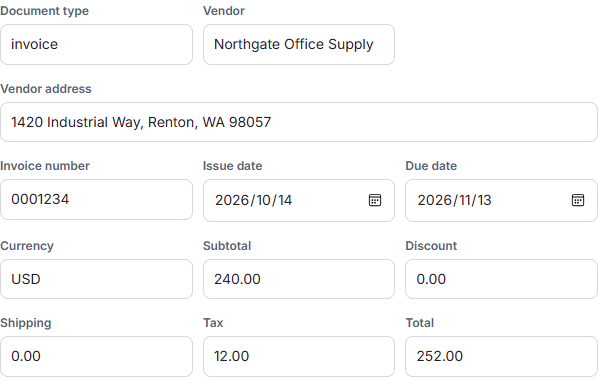
Current product screenshot with mock demonstration data. It demonstrates the interface, not recognition accuracy.
1
Upload your invoices
Choose your invoice files and confirm which ones you want to process. When processing is complete, open an invoice to see its supplier, invoice number, dates, currency, taxes and totals, together with each item's description, quantity, unit and price.
What you get: invoice details arranged in editable fields and line items, ready for you to review.
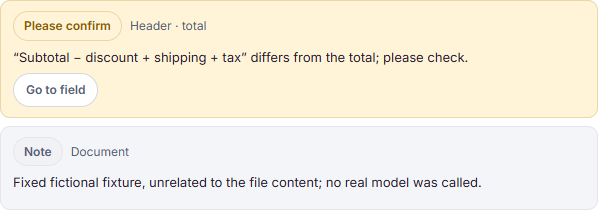
Current product screenshot with mock demonstration data. The total was deliberately changed to demonstrate a review notice.
2
Check the details against the original
Open the original invoice and compare it with the extracted fields. Review the highlighted notices and use the field links to find the entries that need your attention.
What you get: a clear view of what needs checking before you use the data.
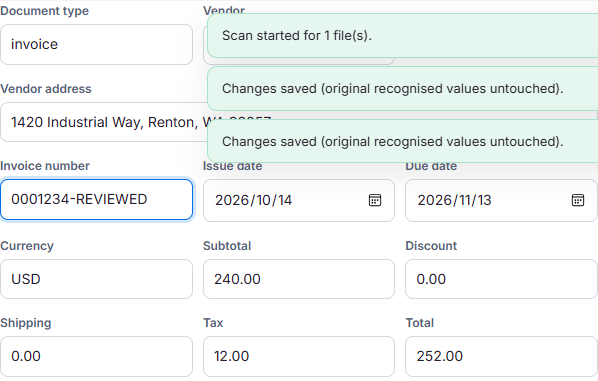
Current product screenshot with mock demonstration data. The invoice number has been edited; the original value is shown for comparison.
3
Make your changes
Correct a field, fill in missing information, or add and remove line items. Save your changes, then confirm the invoice when you have finished reviewing it. The original recognised values remain available.
What you get: a saved version of the data with your corrections, ready to export.
Current product screenshot with mock demonstration data.
4
Download your Excel file
Download one invoice or select several for a batch export. Your workbook contains two sheets: Invoices for supplier details, invoice numbers, dates and totals, and LineItems for descriptions, quantities, units, prices and line amounts. Review status is included, so unconfirmed records remain clearly identified.
What you get: an .xlsx file you can open in Excel to sort, filter and analyse your invoice data.
Generated by the current product using fictional demonstration data. The workbook contains Invoices and LineItems sheets; it is an actual export, not a spreadsheet mockup. Open the actual demo export.
The screenshots and the sample export come from the current product running on fictional
demonstration data. They show the interface and the output format — not recognition accuracy.
Payment checkout is not available yet.
App features
What the product actually does, step by step.
No templates to build
ReadInvo reads pages with a vision model instead of matching a layout you had to set up first. A supplier you have never seen before is not a new project.
Every page, not just the first
A multi-page invoice is read page by page. Page count comes from the file itself, and it is what the price is based on.
Line-item and table extraction
Repeating rows and tables are pulled into their own sheet, with the columns aligned to the invoice they came from.
Arithmetic cross-check
Quantity × unit price is compared with the printed line total, and the totals are checked against their parts. A mismatch becomes a visible flag.
Review and edit
Fields appear next to the original page. Correct anything, and your corrections are what get exported — read back as text, not as a picture.
Excel export, two sheets
Invoices — one row per document. LineItems — one row per item, linked by invoice ID. Amounts stay numbers; IDs keep their leading zeros.
Batch upload
Up to 10 files per batch, 20 MB per file. Items fail independently — one bad file does not sink the batch.
Confirm before you spend
Uploading costs nothing. ReadInvo counts the pages, shows you the credit cost and your balance, and waits for your confirmation.
Usage you can audit
Every page consumed and every credit released is recorded, so the balance on screen matches the work actually done.
Documents we handle
Same engine, different paperwork. Exports keep the shape the document implies.
Invoices
Vendor, invoice number, issue date, tax, totals and line items.
Purchase orders
Order number, supplier, quantities, unit prices and totals.
Receipts
Merchant, date, total and itemised lines from photos of paper.
Delivery notes & packing slips
Reference numbers, items and quantities for receiving reconciliation.
Bank & card statements
Account details and transaction rows, exported as a clean table.
Price & product lists
Table data pulled from PDFs and catalogues for POS or spreadsheets.
Where it fits
Anywhere a document arrives and someone has to type it in.
PDF, JPG and PNG. Up to 20 MB per file and 10 files per batch. Photos of paper invoices work — keeping the page flat and evenly lit helps a lot.
How is billing calculated?
By the page: one invoice page is one credit. A five-page invoice uses five credits. ReadInvo tells you the page count and the credit cost before you confirm, so there is no surprise afterwards.
What happens if a page cannot be read?
It is marked as failed and you are not charged for it. Failed pages stay retryable — once you have credits again, a retry re-runs only the pages that need it, and pages that already succeeded are not charged twice.
What exactly do I get at the end?
One Excel workbook with two sheets. Invoices has one row per document; LineItems has one row per extracted item and links back by invoice ID. Amounts and quantities are stored as numbers, and identifiers keep their leading zeros.
Do I have to build a template per supplier?
No. ReadInvo reads the page as it is, so you do not train it on every new layout. Reviewing the first invoice from a new supplier is always worth it — but it is review, not setup.
Can I correct the extracted data?
Yes, and you should. Every field sits next to the original page so you can compare, and the values you confirm are the values that get exported.
Is my data private?
Your workspace is isolated: files, results and usage belong to your account, and ownership is verified on the server for every request. Other accounts cannot see your documents.
Which languages can be read?
English, French, and Simplified and Traditional Chinese are in scope. Mixed-language documents are part of the design, not a special case. Language support is being validated document by document — if something reads badly, tell us rather than assume it should have worked.
See it on your own paperwork.
Ten free pages, no credit card, no template to build.